

Pinner Studio · Library & ingest
Every picture you own and every picture that inspires you. One library, on your computer.
Your own photos and the references you save from the web live side by side, always marked for what they are. Find anything by camera, lens, date, colour, tag or person, in a library that's just a folder you can back up, move or take with you.
- 1
Two kinds of picture, never confused
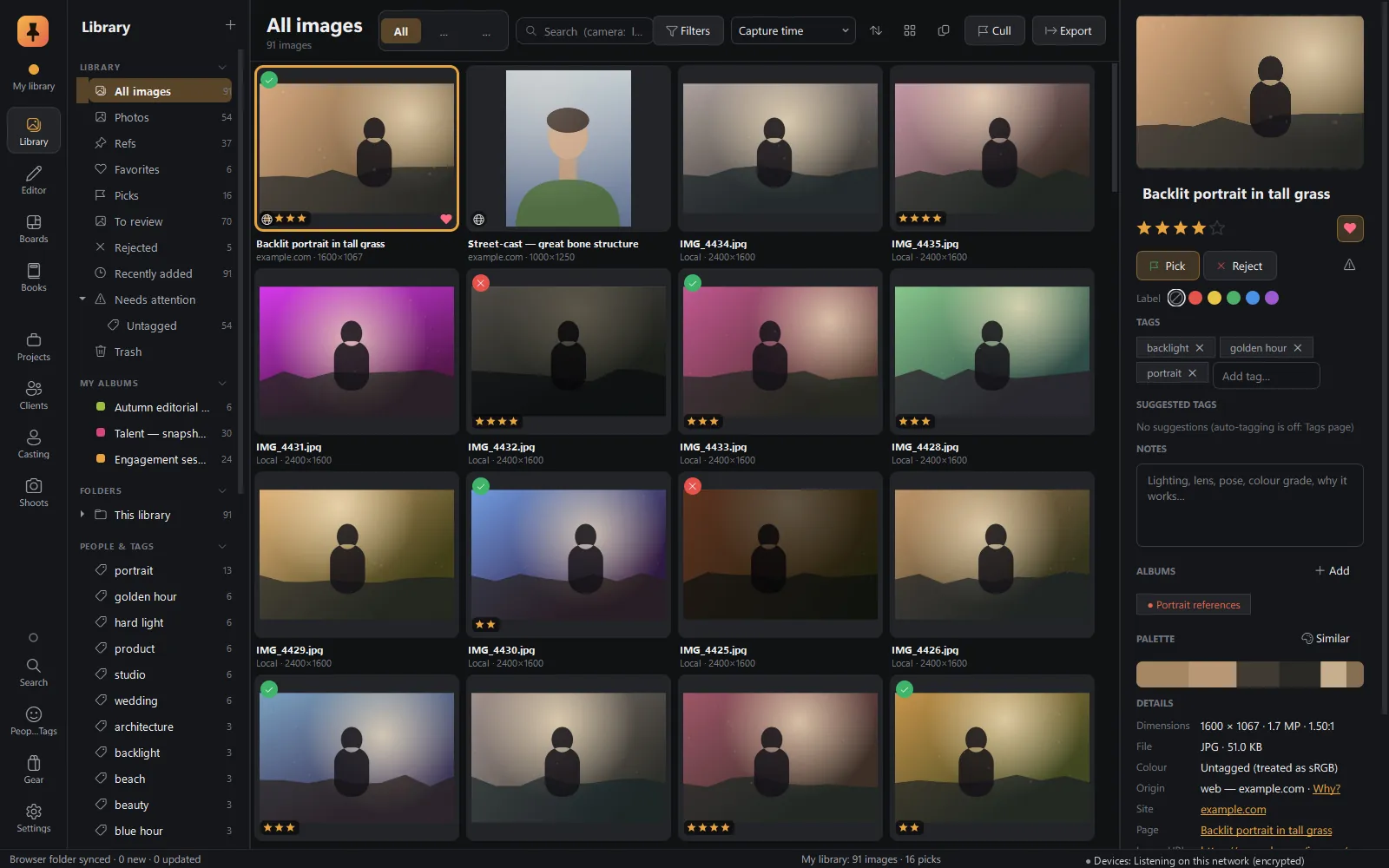
Your own photos and saved web refs sit in one grid, but Pinner always knows which is which. A web ref keeps its source page and credit for good.
- 2
Find anything fast
One search box understands camera settings (
lens:"35mm" iso:>3200 date:2024-06). The filter panel shows live counts, and anything you filter can be saved as a smart album. - 3
Built for tens of thousands of pictures
Card ingest with verified backups, auto-stacks for bursts and brackets, near-duplicate finding, batch rename, metadata templates, previews that keep working while the drive is unplugged, and Undo for every bulk change.
The screen
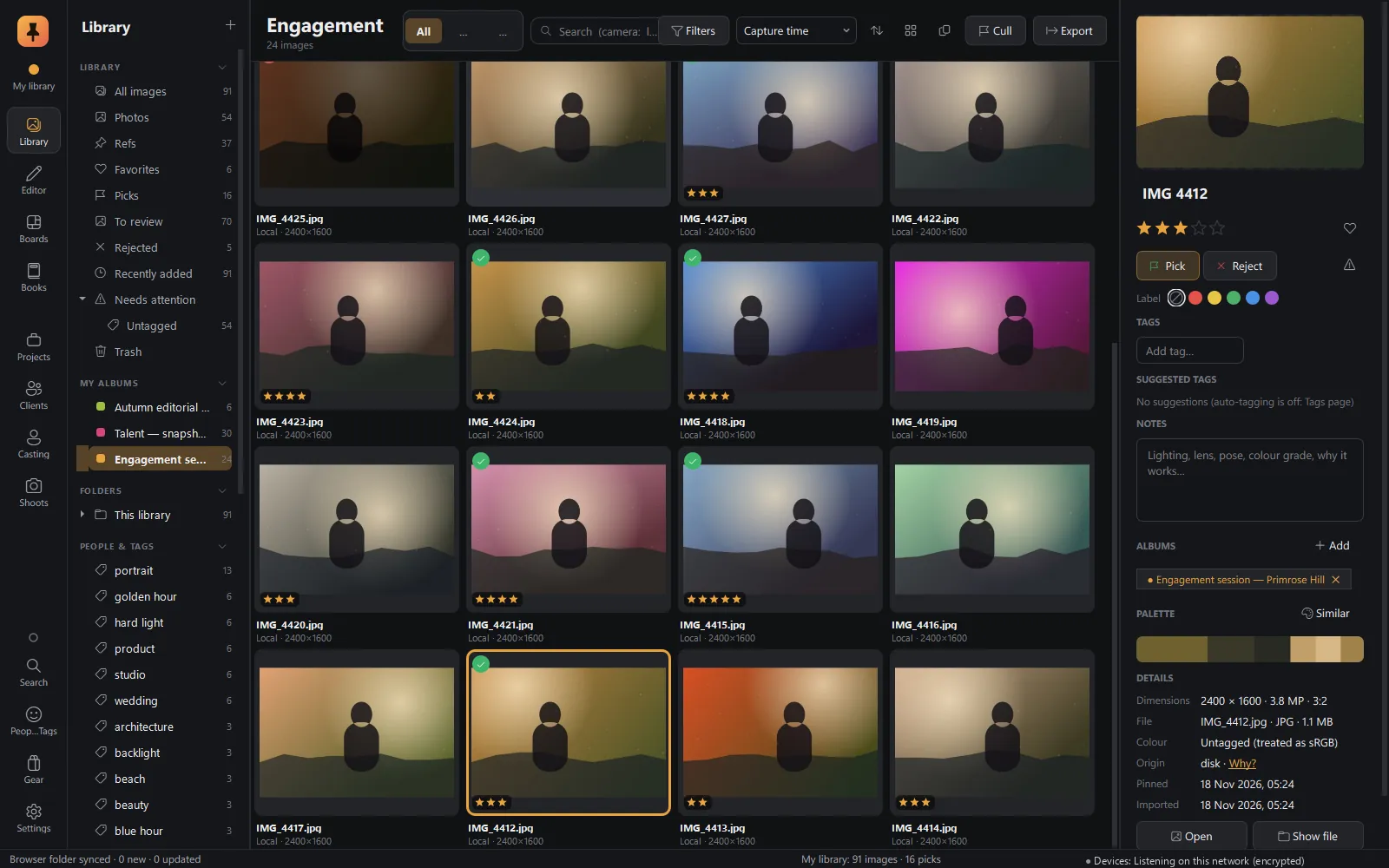
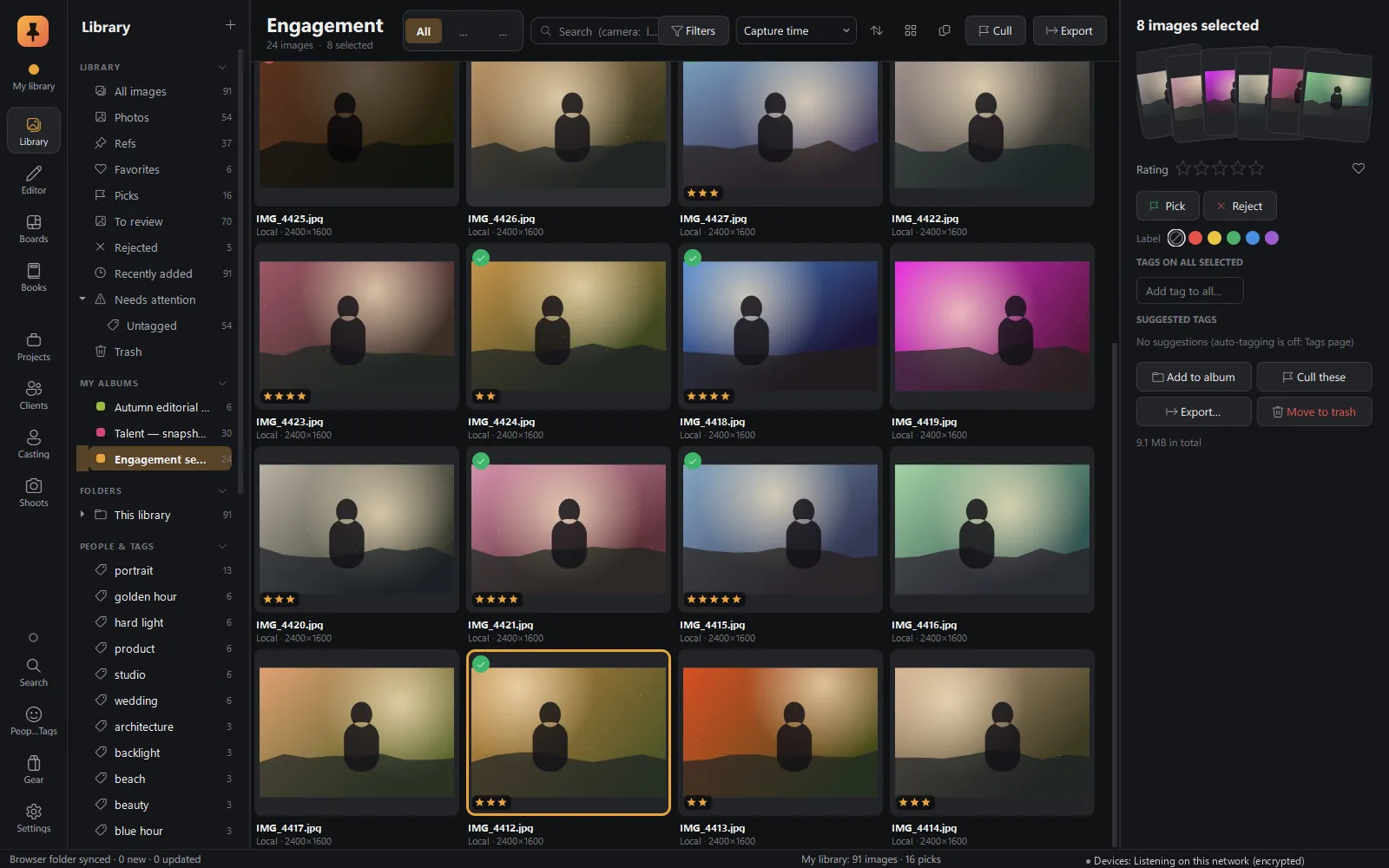
The Library at a glance
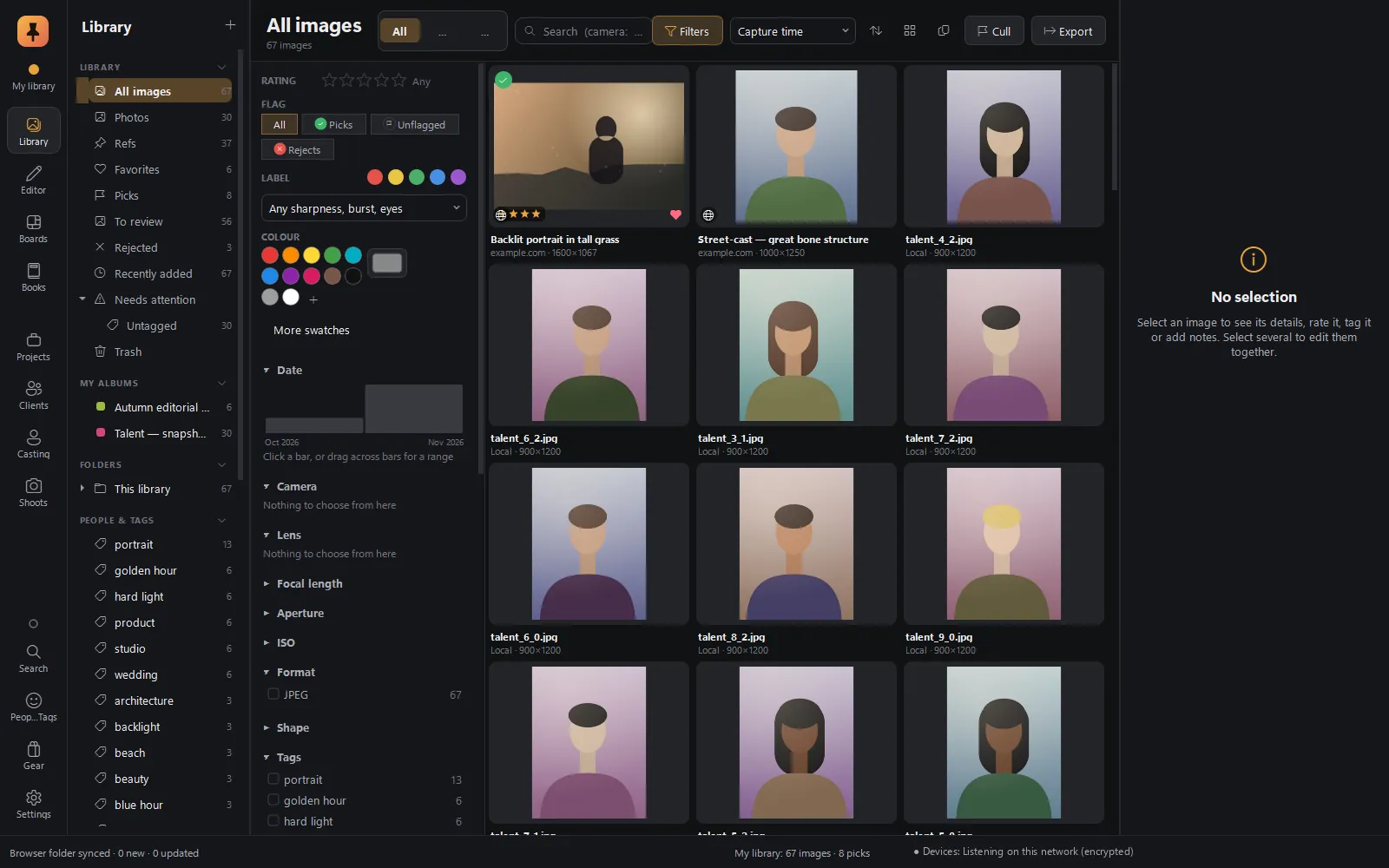
- Rail
- The app's page switcher on the far left: Library, Editor, Boards, Books, Projects, Clients, Casting, Shoots, Search, People & Tags, Gear and Settings.
- Side list
- Smart collections, albums, folders, people and tags.
- Filter panel
- Rating, flag, label, culling findings, colour, a timeline of capture months and facets with live counts. Opens with \.
- Toolbar
- Title and count, the All · Photos · Refs switch, search, filters, sort, view options, stacks, Cull and Export.
- Grid
- Your pictures as a justified grid of thumbnails, at their real shapes.
- Inspector
- Everything about the selected picture, or the selection as a whole.
- Status bar
- Library name, image and pick counts, sync state and background tasks.
Side list and filters
Organised the way you look for things
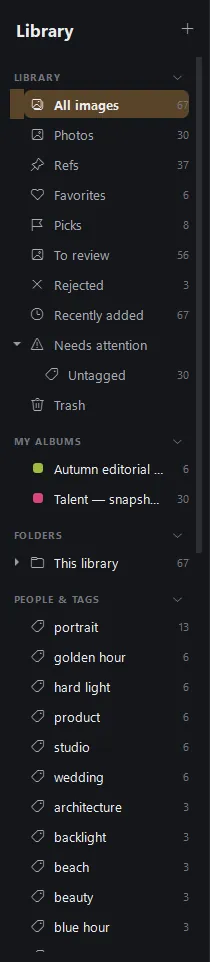
The side list
Each group folds away, and the app remembers which are open. Drag photos from the grid onto an album, a tag or a collection.
| Group | What's in it |
|---|---|
| Library | All images, Photos, Refs, Favorites, Picks, To review, Rejected, Recently added, a Quick collection you build with B, Previous import, Protected and Trash. |
| Needs attention | Shown only when something needs it: untagged, not in an album, offline (drive not connected), missing files that moved, and refs removed in the browser but kept here. |
| My albums | Your albums, nested as deep as you like and colour-coded. Drag to nest or reorder, with Undo one click away. Archive an album and it waits in its own group. |
| Browser albums | Albums made in the Pinner browser extension, with Duplicate as local album for an editable copy. |
| Smart albums | Saved searches that keep themselves up to date. Any view, search and filters included, can become one. |
| Folders | The folders on disk your photos live in. Cull a folder, make it an album, or Locate… it after it has moved. |
| People & Tags | Every tag with its count, to show, cull, rename or remove. People appear when face recognition is switched on. |
The + button imports images, a folder or a memory card, starts a live cull from a hot folder, brings in a client's book reply or a Pinner backup, and syncs browser refs on demand.
The filter panel
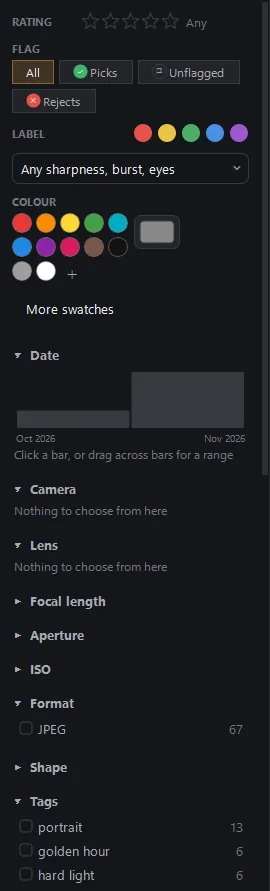
Every choice here is written into the one search box, so a filter can be read, typed, saved as a smart album and undone like anything else.
| Part | What it does |
|---|---|
| Rating | Minimum stars: click a star, click again to clear. |
| Flag | All · Picks · Unflagged · Rejects. |
| Label | Red, yellow, green, blue, purple. |
| Culling assist | Sharp, soft, best of burst, eyes closed and more, from the on-device culling checks. |
| Colour | Pictures that contain a colour: pick a swatch, choose any colour, or sample one from anywhere on screen. |
| Date | A bar chart of capture months. Click a bar, or drag across several for a range. |
| Facets | Camera, lens, focal length, aperture, ISO, format, shape, tags, site, source and more, each with live counts. Click: only these. Alt-click: never these. |
Filters that count for you. See how many frames you shot on each lens before you click.
Toolbar and search
Search that speaks photographer

The toolbar
| Control | What it does |
|---|---|
| All · Photos · Refs | Ctrl+1/2/3: everything, only your own pictures, or only refs. Every view, count and smart album follows it. |
| Search | Ctrl+F. One box for words and search terms; it searches as you type. |
| Sort | Date added, capture time, recently edited, title, rating, resolution, file size, source site, colour or shuffle. |
| View options | Crop thumbnails to fill, titles, ratings and labels, blur mature thumbnails, and a size slider. |
| Stacks | Stack a selection (Ctrl+G), stack bursts and brackets in the view, or stack by folder, album, project or shoot. |
| Cull · Export | Send the view or the selection to the culling loupe, or export it. |
Search terms
| Search by | Example |
|---|---|
| Camera and lens | camera:"X-T5" · lens:"35mm F1.4" |
| Format and shape | format:raw · shape:panorama |
| Capture date | date:2024 · date:2024-06..2024-08 |
| Exposure | iso:>3200 · focal:24..70 · f:..2.8 |
| Rating, flag, tags | rating:>=4 · is:pick · tag:portrait |
| Where it came from | from:browser · from:disk · site:example.com |
| Culling findings | is:sharp · is:best · is:closed · faces:2+ |
Put - in front of any term to leave those pictures out. Each filter shows as a chip above the grid; click its × to take it away.
The grid
A grid that keeps up with you
The grid
- A justified grid: rows of thumbnails at their real shapes, sized by the slider.
- Each tile can show its title, stars, flag and colour label, a heart for favourites, and a globe badge on web refs, so a ref never passes for your own photo.
- Stacks show as one tile with a count; S opens or closes one.
- Double-click, or press Space, to open a photo in the culling loupe.
- The same keys as Cull and the Editor: P pick, X reject, U unflag, 0–5 stars, 6–9 labels, F favourite, B quick collection.
- Paste an image copied in a browser or another app and it becomes a new ref. Drop a folder on the window to import it.
Right-click any picture for the same menu in the Library, Cull and the Editor: open, mark, tag, rename, stack, find duplicates, switch between photo and ref, read or write metadata, merge to HDR or panorama, make a book, export, print or delete.
Inspector
The Inspector: everything about a picture
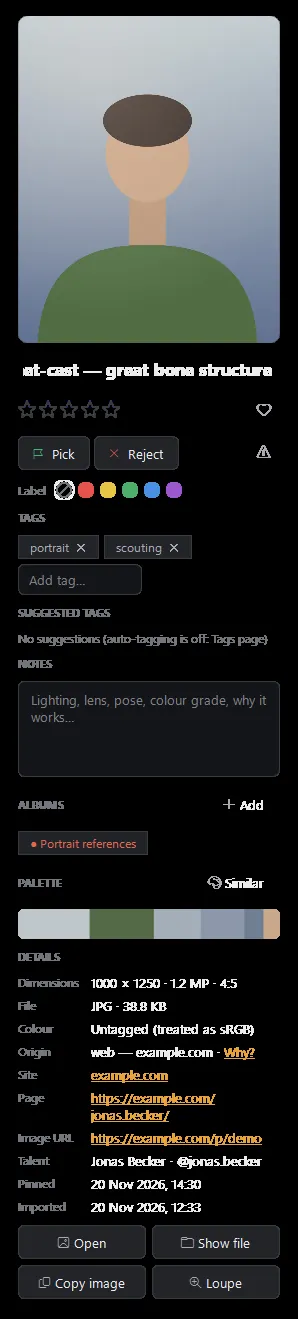
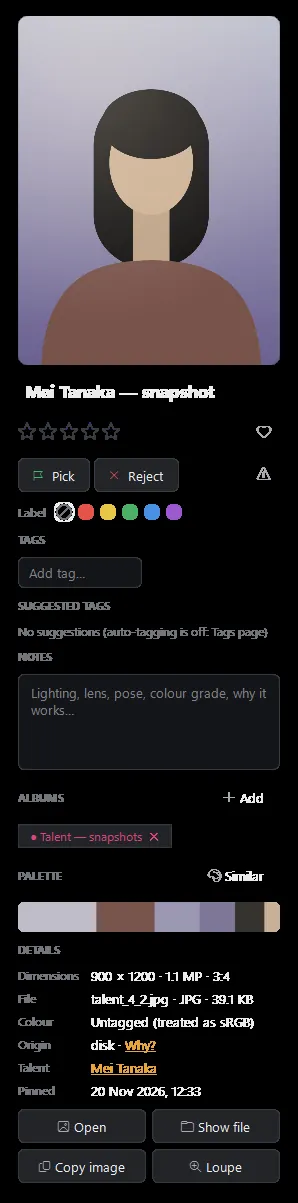
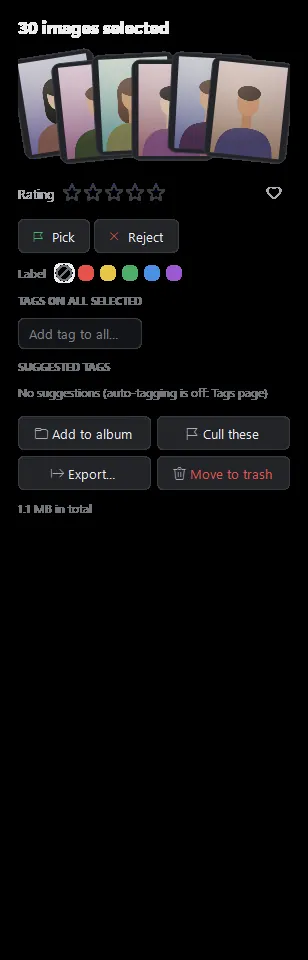
One web ref · one of your own photos · several selected at once
| Section | What it holds |
|---|---|
| Rating, flag, label | Stars, pick and reject, the favourite heart, a mature-content flag and colour labels. |
| Tags | Tags as chips with an Add tag… box. With several selected: Add tag to all…. |
| Suggested tags | Keyword suggestions from on-device auto-tagging, when you switch it on. |
| Notes and albums | Free text, and the albums it's in, with Add and New album. |
| Palette | The picture's main colours; Similar finds pictures with similar colours. |
| Details | Size, file type, colour space and Origin (disk or web). Refs show their site, page and image address; your own photos show the full camera data. |
| Editor strip | For an edited photo: Edited · Reset · Copy look · Open in Editor. |
★ Credit stays attached
A ref is always someone else's.
A ref's origin is set once, when it's saved, and can never be changed, not even by importing a downloaded copy later: Pinner recognises the picture by its content. That's why web refs can't be edited, face-tagged or exported as originals as though they were yours.
Import and ingest
Bringing pictures in
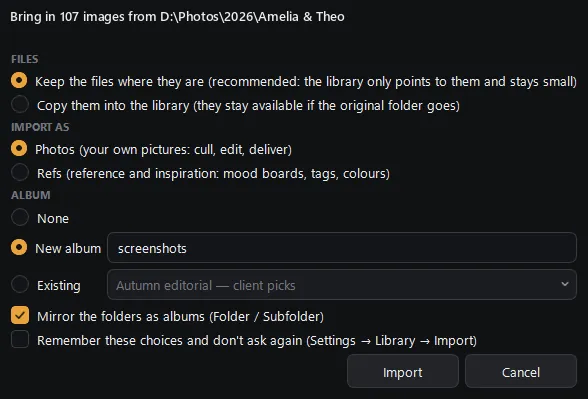
Import images or a folder
Choose whether files stay where they are (the library only points to them and stays small) or are copied into the library; whether they come in as photos or refs; and the album: none, a new one, an existing one, or the folders mirrored as albums.
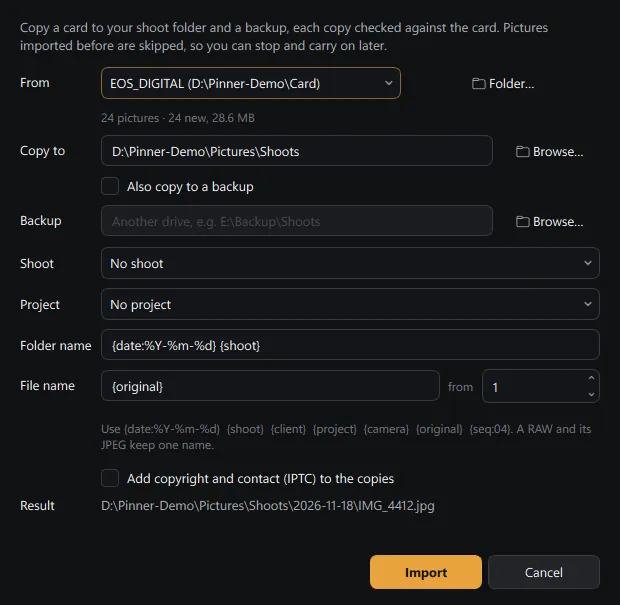
Import from a memory card, with a verified backup
Pinner copies every file to a main folder and a backup folder in one read of the card, checks each copy with SHA-256 (a bad copy is retried, then reported), renames by template and sorts into dated folders. Run it again and only what's new is copied. RAW+JPEG pairs stay one picture with one name, and it all runs in the background.
Live cull from a hot folder
Point Pinner at the folder your camera's tether software saves into. Each new frame, once it's fully written, becomes a photo and goes straight into a live culling session.
Straight from the browser
Refs saved with the Pinner browser extension arrive by themselves. Edits made in the browser are merged with care, so changes made in Studio are never overwritten.
Paste or drop
Paste an image from the clipboard, or drop files and folders onto the window.
A Pinner backup
Bring in a backup made by the browser extension, as a .zip.
Tens of thousands of pictures
Organising at scale
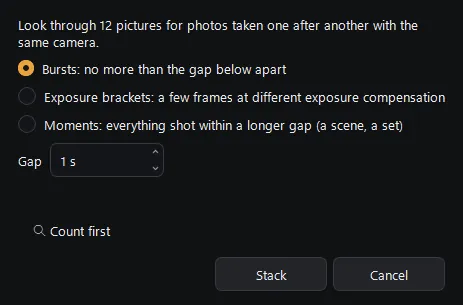
Stack bursts and brackets
Frames shot close together, bursts, exposure brackets or a time gap you choose, grouped into stacks.
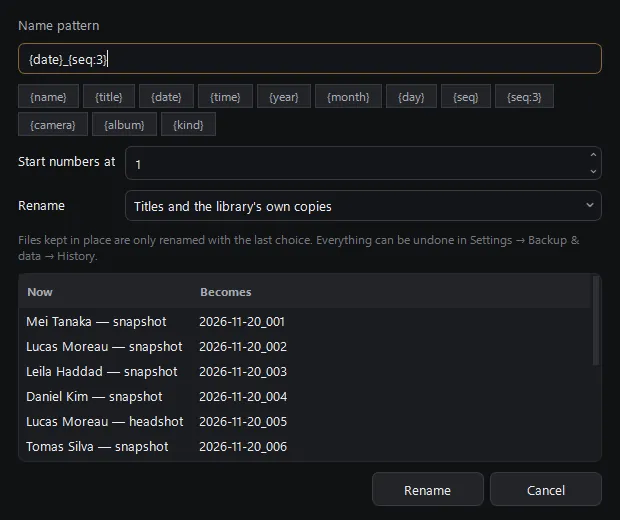
Batch rename
A name pattern from tokens such as {date}, {seq:3}, {camera} and {album}, with a live Now → Becomes preview. Rename titles only, or files too.
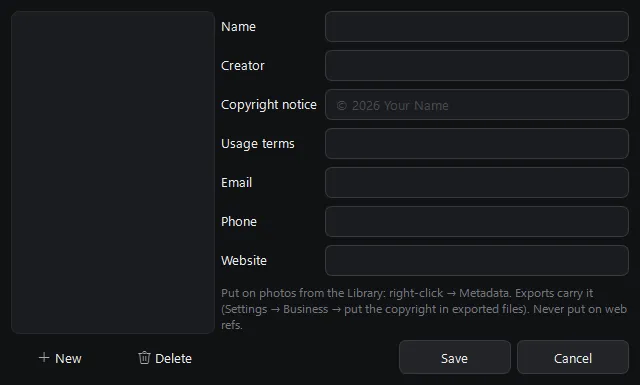
Metadata templates
Creator, copyright, usage terms and contact details, put on many photos at once. Never put on web refs.
Batch edit a selection
Ratings, flags, labels, tags and albums for many pictures at once.
- Find duplicates: the same file twice, and near-duplicates found by a picture fingerprint. Then stack each group, or keep one and trash the others.
- History and Undo: every bulk change (trash, ratings, flags, convert, protect, stack, rename, metadata, moving an album) is recorded, and any one of them can be undone.
- Write metadata to files: ratings, labels, titles and keywords go into industry-standard XMP, so other photo apps see them.
- Smart albums and the Quick collection (B) for piles you build as you go.
Your files, your folders
Libraries, drives and safety
Several libraries
Keep separate, self-contained libraries, one per client, per year, or work and personal, and switch with Ctrl+Shift+O. Each is a folder with its own database, thumbnails, previews and settings, so one on a NAS or an external drive is complete on its own.
Unplugged drives are fine
A library whose drive is missing waits until it comes back, even under another drive letter. Photos on a removable drive stay browsable through their previews while it's away.
Move photos between libraries
Copy or move a selection, start a new library from it, or merge a whole library into the open one. Tags, ratings, albums, talent links and culling scores travel with each photo, and a move is checked byte for byte first.
Safe by default
Two copies of Pinner Studio never open the same library at once. Back up the database alone (fast) or everything with the images. Clearing a cache never removes a photo or an edit.
Questions
Can Pinner Studio leave my photos where they are?
Yes. When you import a folder you choose whether files stay where they are, so the library only points to them, or are copied into the library.
Does it work with photos on an external drive or a NAS?
Yes. A whole library can live on a NAS or an external drive. If the drive is unplugged, the library waits for it, and photos keep showing through their previews until it's back.
How does memory-card ingest protect my files?
Import from card copies every file to a main folder and a backup folder in one read of the card, and checks each copy with SHA-256. A bad copy is retried, then reported.
Can I search by camera, lens, ISO or date?
Yes. The search box understands terms such as camera:"X-T5", lens:"35mm", iso:>3200 and date:2024-06, and the filter panel shows live counts for every camera, lens and setting in view.
What is the difference between a photo and a ref?
Photos are your own pictures. Refs are pictures saved from the web as references. They share one library, but a ref keeps its source page and credit for good and can't be edited or exported as though it were yours.
Can other photo apps see my ratings and keywords?
Yes. Ratings, labels, titles and keywords can be written to industry-standard XMP, which other photo apps read.
Keep exploring
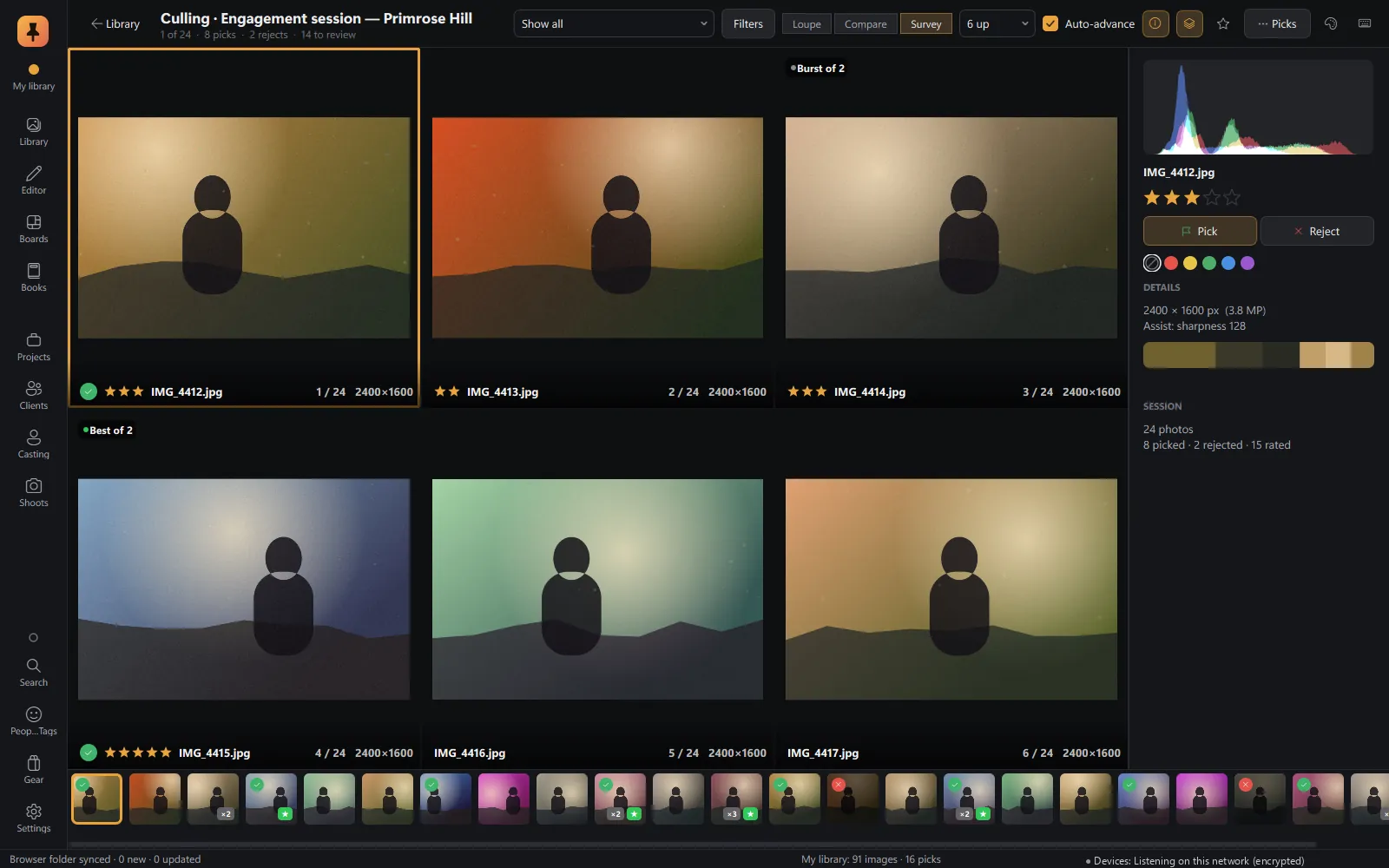 CullingLoupe, Compare and Survey, with on-device sharpness, eyes-closed and burst checks.Explore Culling
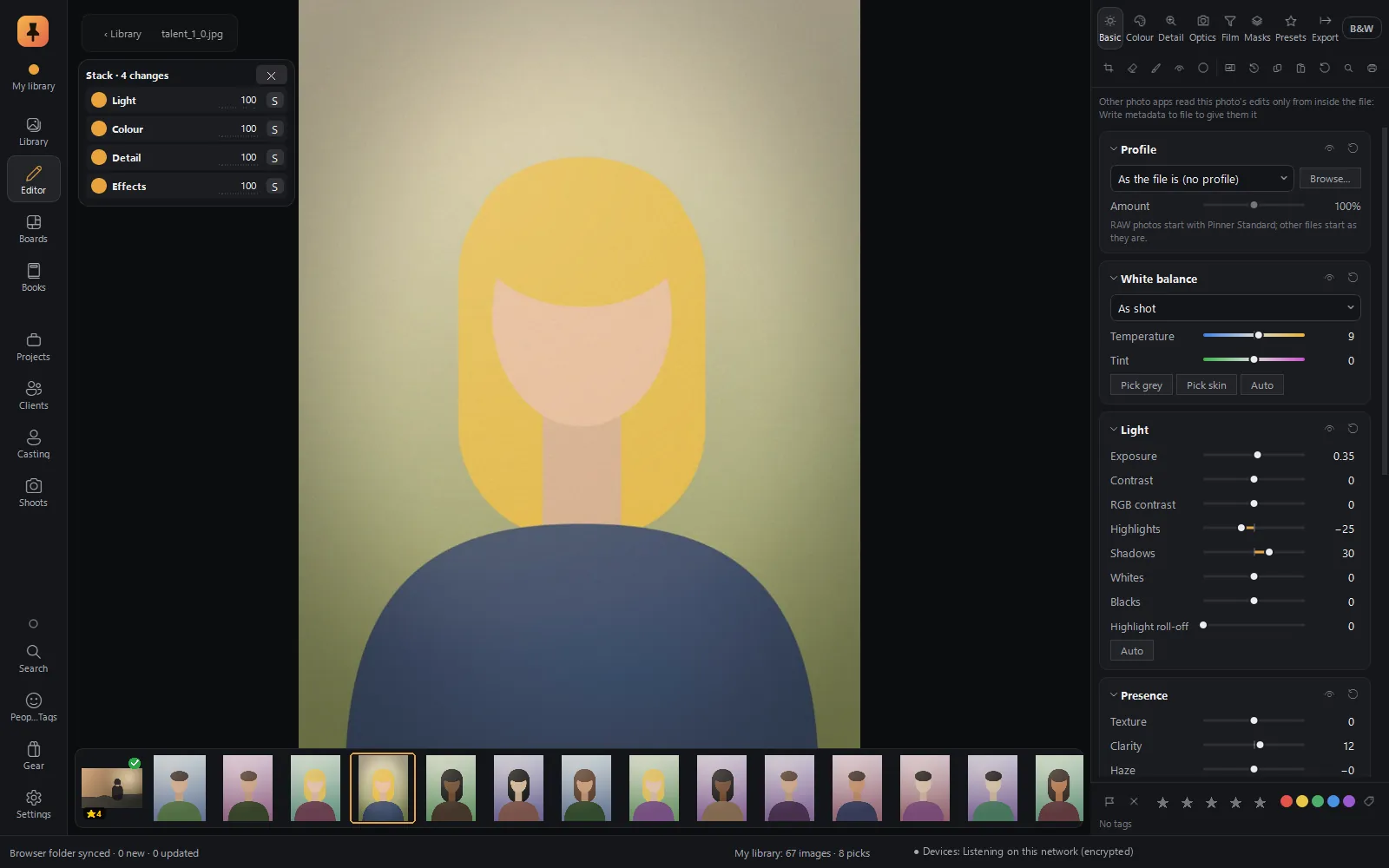 RAW editorFilm colour science, edits as cards in a Stack, branching history, Explore, and a command bar you type into.Explore RAW editor
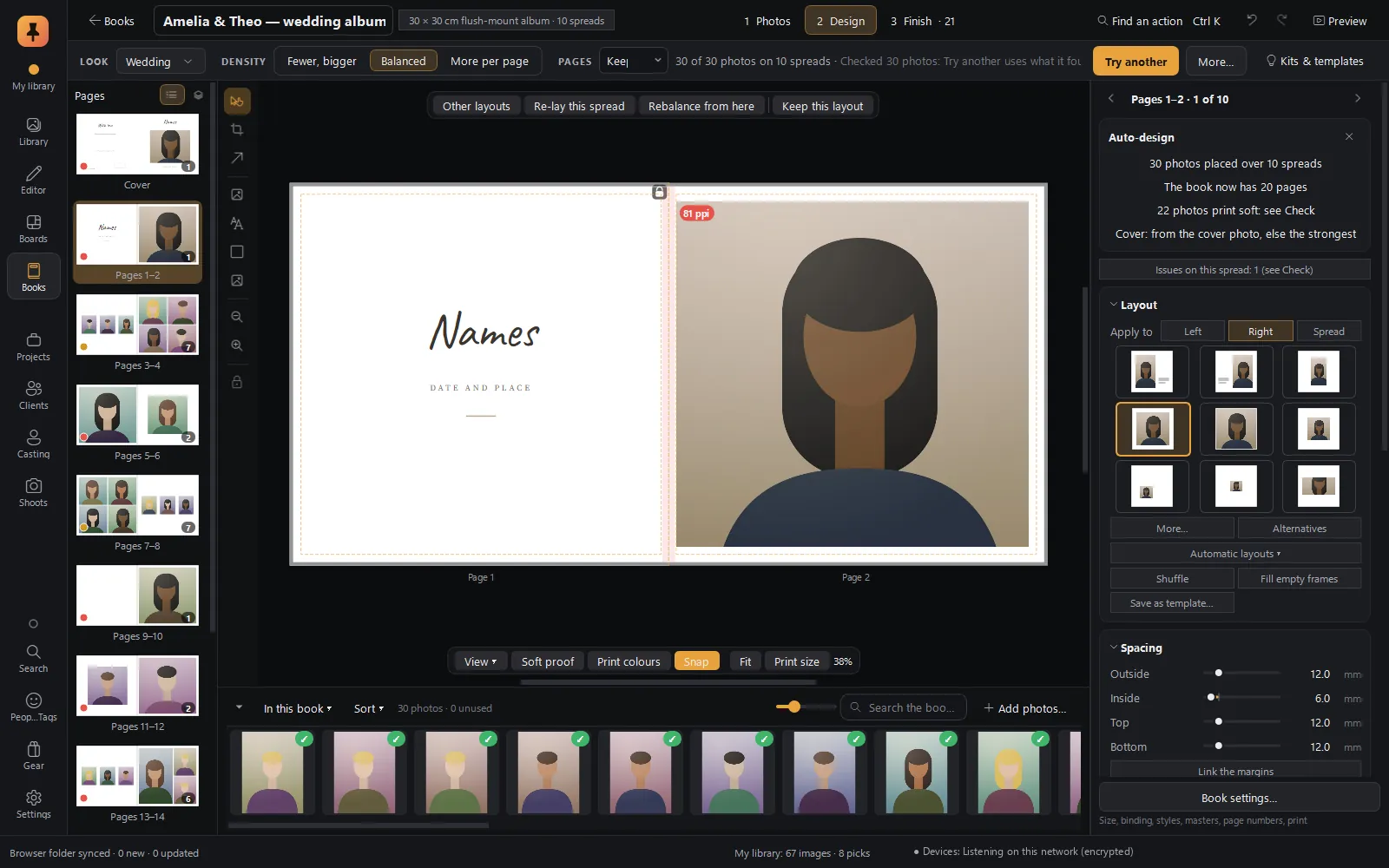 Albums & booksAuto-designed albums in story order, print checks with fixes, client approval spread by spread, lab-ready PDF/X-4.Explore Albums & books
Private alpha · Applications open
Try Pinner Studio before anyone else.
Pinner Studio and the Pinner browser extension are being tested now by a small group of working photographers on Windows 10 and 11. Apply in two minutes; we read every application.